Keep Your Raspberry Pi Online: Fixing WiFi Drops and SSH Disconnects
Raspberry Pi going offline randomly? WiFi power save is likely the culprit. Here is how to keep your Pi accessible 24/7 with systemd services and network recovery.

The Pi was working fine yesterday. SSH connected instantly. Scripts ran on schedule. Then this morning - nothing.
$ ssh atd@raspberrypi.local
ssh: connect to host raspberrypi.local port 22: Host is down
I walked over to the Pi. Green LED blinking happily. Power fine. But the network was gone. A reboot fixed it, but two hours later - same thing.
If your Raspberry Pi stays online for a while then randomly becomes unreachable, you are not alone. This is one of the most common issues with headless Pi setups, and the culprit is almost always the same: WiFi power save mode.
Why Your Pi Goes Offline
Raspberry Pi OS enables WiFi power management by default. This makes sense for battery-powered devices - turn off the radio when idle to save power. But for a Pi running on wall power 24/7, it is counterproductive and annoying.
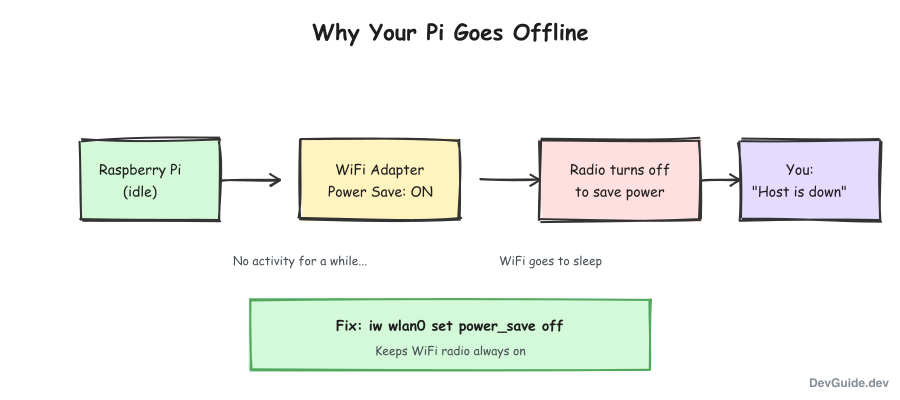
The symptoms are predictable:
- Pi works fine for hours, then becomes unreachable
ping raspberrypi.localtimes out- Physical reboot fixes it temporarily
- Problem returns after some idle time
The Fix: Disable WiFi Power Save
First, check if power save is enabled:
iw wlan0 get power_saveIf it says Power save: on, that is your problem.
Quick Fix (Temporary)
Disable it immediately:
sudo iw wlan0 set power_save offThis works until the next reboot.
Permanent Fix (Systemd Service)
Create a systemd service that disables power save on every boot:
sudo tee /etc/systemd/system/disable-wifi-powersave.service > /dev/null << 'EOF'
[Unit]
Description=Disable WiFi Power Save Mode
After=network.target

[Service]
Type=oneshot
ExecStart=/usr/sbin/iw wlan0 set power_save off
RemainAfterExit=true

[Install]
WantedBy=multi-user.target
EOF
Enable and start it:
sudo systemctl daemon-reload
sudo systemctl enable --now disable-wifi-powersave.service
Verify it worked:
iw wlan0 get power_save
# Should show: Power save: off
This single change fixes 90% of Pi connectivity issues.
SSH Keepalive Settings
Even with WiFi power save disabled, SSH connections can drop if the network goes idle. Configure the SSH server to send keepalive packets:
# Edit SSH config
sudo nano /etc/ssh/sshd_config
Add or modify these lines:
ClientAliveInterval 60
ClientAliveCountMax 3
This sends a keepalive packet every 60 seconds. If 3 packets go unanswered, the connection is considered dead.
Apply the changes:
sudo systemctl restart sshdYou can also configure this on your client side in ~/.ssh/config:
Host raspberrypi.local
    ServerAliveInterval 60
    ServerAliveCountMax 3
Auto-Recovery: The Gentle Approach
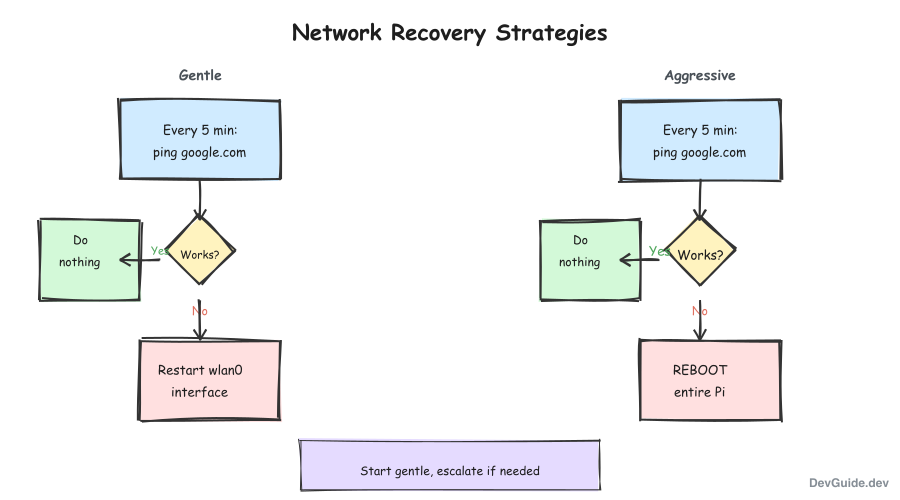
Sometimes the network genuinely drops - router reboots, ISP hiccups, interference. For a truly reliable Pi, add automatic recovery.
Network Recovery Service
This script checks connectivity every 5 minutes. If the network is down, it restarts the WiFi interface first. If that does not work, it reboots the system as a last resort:
sudo tee /usr/local/bin/network-recover.sh > /dev/null << 'EOF'
#!/bin/bash
TARGET_HOST="1.1.1.1"
INTERFACE="wlan0"
RECOVERY_WAIT=10

if ! ping -c1 -W5 "$TARGET_HOST" > /dev/null 2>&1; then
    logger "[network-recover] Network unreachable. Restarting $INTERFACE"

    /sbin/ip link set "$INTERFACE" down
    sleep 2
    /sbin/ip link set "$INTERFACE" up

    logger "[network-recover] $INTERFACE restarted, waiting ${RECOVERY_WAIT}s to verify"
    sleep "$RECOVERY_WAIT"

    if ! ping -c1 -W5 "$TARGET_HOST" > /dev/null 2>&1; then
        logger "[network-recover] Network still unreachable after restart, rebooting"
        /sbin/reboot
    else
        logger "[network-recover] Network recovered successfully"
    fi
fi
EOF

sudo chmod +x /usr/local/bin/network-recover.sh
This combined approach is gentler than immediate reboot - it gives the interface a chance to recover first.
Systemd Timer (Better Than Cron)
Create the service:
sudo tee /etc/systemd/system/network-recover.service > /dev/null << 'EOF'
[Unit]
Description=Recover WiFi if network unreachable

[Service]
Type=oneshot
ExecStart=/usr/local/bin/network-recover.sh
EOF
Create the timer:
sudo tee /etc/systemd/system/network-recover.timer > /dev/null << 'EOF'
[Unit]
Description=Run network recovery every 5 minutes

[Timer]
OnBootSec=5min
OnUnitActiveSec=5min
Persistent=true

[Install]
WantedBy=timers.target
EOF
Enable it:
sudo systemctl daemon-reload
sudo systemctl enable --now network-recover.timer
Check status:
systemctl list-timers | grep network-recoverView logs:
journalctl -u network-recover.serviceHardware Watchdog: The Ultimate Fallback
What if the Pi completely freezes? Kernel panic, out-of-memory, hardware glitch - no software recovery script can help if the system is hung. This is where the hardware watchdog comes in.
Raspberry Pi has a built-in hardware watchdog timer. If the system stops responding, the watchdog reboots it automatically.
Enable the Watchdog
Add to /boot/config.txt (or /boot/firmware/config.txt on newer Pi OS):
echo "dtparam=watchdog=on" | sudo tee -a /boot/config.txtConfigure Systemd to Pet the Watchdog
Create /etc/systemd/system.conf.d/watchdog.conf:
sudo mkdir -p /etc/systemd/system.conf.d
sudo tee /etc/systemd/system.conf.d/watchdog.conf > /dev/null << 'EOF'
[Manager]
RuntimeWatchdogSec=15
RebootWatchdogSec=10min
EOF
This tells systemd to “pet” the hardware watchdog every 15 seconds. If systemd stops responding for more than 15 seconds, the watchdog triggers a hardware reset.
Reboot and Verify
sudo rebootAfter reboot, verify the watchdog is active:
dmesg | grep watchdogYou should see:
bcm2835-wdt bcm2835-wdt: Broadcom BCM2835 watchdog timer
systemd[1]: Using hardware watchdog 'Broadcom BCM2835 Watchdog timer'
systemd[1]: Watchdog running with a hardware timeout of 15s.
The hardware watchdog is your last line of defense - it works even when everything else fails.
Alternative: Cron Job
If you prefer cron over systemd timers:
# Add to root crontab
sudo crontab -e
Add this line:
*/5 * * * * ping -c1 google.com > /dev/null 2>&1 || /sbin/rebootThis does the same thing - checks every 5 minutes, reboots if offline.
Complete Setup Script
Here is everything combined into one script you can run on a fresh Pi:
#!/bin/bash
set -e

echo "=== Raspberry Pi Connectivity Hardening ==="

# 1. Disable WiFi power save
echo "[1/4] Disabling WiFi power save..."
sudo tee /etc/systemd/system/disable-wifi-powersave.service > /dev/null << 'EOF'
[Unit]
Description=Disable WiFi Power Save Mode
After=network.target

[Service]
Type=oneshot
ExecStart=/usr/sbin/iw wlan0 set power_save off
RemainAfterExit=yes

[Install]
WantedBy=multi-user.target
EOF

sudo systemctl daemon-reload
sudo systemctl enable --now disable-wifi-powersave.service

# 2. Configure SSH keepalive
echo "[2/4] Configuring SSH keepalive..."
sudo mkdir -p /etc/ssh/sshd_config.d
sudo tee /etc/ssh/sshd_config.d/keepalive.conf > /dev/null << 'EOF'
ClientAliveInterval 60
ClientAliveCountMax 3
EOF
sudo systemctl restart sshd

# 3. Setup network recovery (with reboot fallback)
echo "[3/4] Setting up network recovery..."
sudo tee /usr/local/bin/network-recover.sh > /dev/null << 'SCRIPT'
#!/bin/bash
TARGET_HOST="1.1.1.1"
INTERFACE="wlan0"
RECOVERY_WAIT=10

if ! ping -c1 -W5 "$TARGET_HOST" > /dev/null 2>&1; then
    logger "[network-recover] Network unreachable. Restarting $INTERFACE"
    /sbin/ip link set "$INTERFACE" down
    sleep 2
    /sbin/ip link set "$INTERFACE" up
    logger "[network-recover] $INTERFACE restarted, waiting ${RECOVERY_WAIT}s"
    sleep "$RECOVERY_WAIT"
    if ! ping -c1 -W5 "$TARGET_HOST" > /dev/null 2>&1; then
        logger "[network-recover] Still unreachable, rebooting"
        /sbin/reboot
    else
        logger "[network-recover] Network recovered"
    fi
fi
SCRIPT

sudo chmod +x /usr/local/bin/network-recover.sh

sudo tee /etc/systemd/system/network-recover.service > /dev/null << 'EOF'
[Unit]
Description=Recover WiFi if network unreachable

[Service]
Type=oneshot
ExecStart=/usr/local/bin/network-recover.sh
EOF

sudo tee /etc/systemd/system/network-recover.timer > /dev/null << 'EOF'
[Unit]
Description=Run network recovery every 5 minutes

[Timer]
OnBootSec=5min
OnUnitActiveSec=5min
Persistent=true

[Install]
WantedBy=timers.target
EOF

sudo systemctl daemon-reload
sudo systemctl enable --now network-recover.timer

# 4. Enable hardware watchdog
echo "[4/4] Enabling hardware watchdog..."
sudo mkdir -p /etc/systemd/system.conf.d
sudo tee /etc/systemd/system.conf.d/watchdog.conf > /dev/null << 'EOF'
[Manager]
RuntimeWatchdogSec=15
RebootWatchdogSec=10min
EOF

# Enable watchdog in boot config
BOOT_CONFIG="/boot/firmware/config.txt"
[ -f "$BOOT_CONFIG" ] || BOOT_CONFIG="/boot/config.txt"
if ! grep -q "dtparam=watchdog=on" "$BOOT_CONFIG" 2>/dev/null; then
    echo "dtparam=watchdog=on" | sudo tee -a "$BOOT_CONFIG"
fi

echo ""
echo "=== Setup Complete ==="
echo "WiFi power save: disabled"
echo "SSH keepalive: enabled (60s interval)"
echo "Network recovery: enabled (5 min checks, reboot fallback)"
echo "Hardware watchdog: enabled (15s timeout)"
echo ""
echo "IMPORTANT: Reboot required to activate hardware watchdog"
echo ""
echo "Verify with:"
echo "  iw wlan0 get power_save"
echo "  systemctl list-timers | grep network"
echo "  dmesg | grep watchdog  (after reboot)"
Save this as pi-network-setup.sh and run with:
chmod +x pi-network-setup.sh
sudo ./pi-network-setup.sh
sudo reboot
Monitoring and Debugging
Check WiFi Power Save Status
iw wlan0 get power_saveView Recovery Logs
journalctl -u network-recover.service --since "1 hour ago"List Active Timers
systemctl list-timers --all | grep networkCheck WiFi Signal Strength
iwconfig wlan0 | grep -i signalNetwork Interface Status
ip link show wlan0When This Does Not Work
If your Pi still goes offline after these fixes, check:
-
Router issues - Some routers aggressively disconnect idle clients. Check your router’s DHCP lease time and WiFi settings.
-
Interference - 2.4GHz is crowded. If possible, use 5GHz or Ethernet.
-
Power supply - Underpowered Pi can cause WiFi instability. Use the official power supply.
-
Distance - WiFi signal degrades with distance and obstacles. Move the Pi closer to the router or add a WiFi extender.
-
USB WiFi dongle issues - If using an external dongle, try a different one or the built-in WiFi.
Quick Reference
| Problem | Solution |
|---|---|
| Pi goes offline after idle | Disable WiFi power save |
| SSH connections drop | Enable SSH keepalive |
| Network occasionally fails | Add recovery timer (restart+reboot) |
| System completely freezes | Enable hardware watchdog |
The Reliable Pi
After applying these fixes, my Pi has been online for weeks without a single dropout. The layered defense handles everything:
- WiFi power save off - Prevents the radio from sleeping
- SSH keepalive - Maintains persistent connections
- Network recovery - Restarts interface if down, reboots if needed
- Hardware watchdog - Reboots if the system completely hangs
The green LED still blinks happily. But now when I SSH in, it actually connects.
This post is part of a series on Raspberry Pi. See also: Raspberry Pi Headless SSH Setup and Identify Your Raspberry Pi Hardware.