Identify Your Raspberry Pi Hardware via SSH
Not sure which Raspberry Pi model you have? These SSH commands reveal your Pi's model, CPU, RAM, and OS without needing physical access.

I have three Raspberry Pis running headless in various corners of my home. One runs Pi-hole, another handles home automation, and the third… I genuinely forgot what model it is.
Is it a Pi 4 with 2GB or 4GB? Maybe a Pi 3B+? I could unplug it and check the board, but there is an easier way.
If you can SSH into your Pi, you can identify your Raspberry Pi hardware with a few simple commands.
The Quick Answer
Run this command:
cat /sys/firmware/devicetree/base/modelOutput:
Raspberry Pi 5 Model B Rev 1.0That is it. The exact model, variant, and revision in one line.
All the Commands You Need
Here is the complete reference for identifying every aspect of your Pi’s hardware:
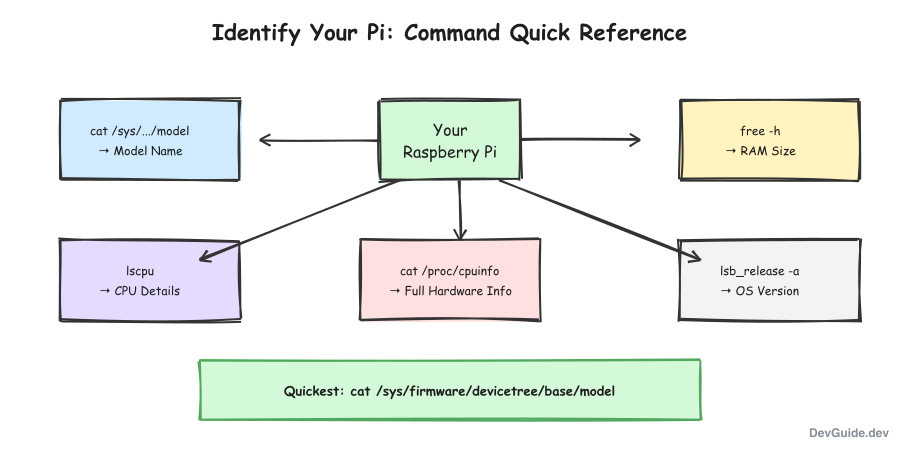
Model Identification
Method 1: Device tree (cleanest output)
cat /sys/firmware/devicetree/base/modelRaspberry Pi 5 Model B Rev 1.0Method 2: CPU info
cat /proc/cpuinfo | grep ModelModel : Raspberry Pi 5 Model B Rev 1.0Both give you the same information. The device tree method is slightly cleaner.
Memory (RAM)
free -h total used free shared buff/cache available
Mem: 7.9Gi 248Mi 7.6Gi 13Mi 153Mi 7.6Gi
Swap: 511Mi 0B 511MiThe total column under Mem shows your RAM. In this case, 7.9GB indicates an 8GB model (some memory is reserved for the GPU).
Quick RAM check:
| Displayed | Actual Model |
|---|---|
| ~430MB | 512MB model |
| ~920MB | 1GB model |
| ~1.9GB | 2GB model |
| ~3.7GB | 4GB model |
| ~7.9GB | 8GB model |
CPU Details
lscpuArchitecture: aarch64
CPU(s): 4
Vendor ID: ARM
Model name: Cortex-A76
CPU max MHz: 2400.0000
CPU min MHz: 1500.0000Key fields:
- Architecture:
aarch64means 64-bit ARM,armv7lmeans 32-bit - Model name: The ARM core type (Cortex-A76 for Pi 5, Cortex-A72 for Pi 4)
- CPU(s): Number of cores
- CPU max MHz: Maximum clock speed
Full CPU Info
For the complete picture:
cat /proc/cpuinfoThis outputs detailed information for each CPU core, including:
- Hardware revision code
- Serial number
- Model string
The revision code at the bottom can be decoded using the Raspberry Pi revision codes documentation.
Operating System
lsb_release -aNo LSB modules are available.
Distributor ID: Debian
Description: Debian GNU/Linux 12 (bookworm)
Release: 12
Codename: bookwormOr alternatively:
cat /etc/os-releasePRETTY_NAME="Debian GNU/Linux 12 (bookworm)"
NAME="Debian GNU/Linux"
VERSION_ID="12"
VERSION="12 (bookworm)"
VERSION_CODENAME=bookworm
ID=debianThe OS version often indicates the Pi’s era:
| Codename | Debian Version | Raspberry Pi Era |
|---|---|---|
| Bookworm | 12 | Pi 4, Pi 5 |
| Bullseye | 11 | Pi 4, Pi Zero 2 |
| Buster | 10 | Pi 3, Pi 4 |
| Stretch | 9 | Pi 2, Pi 3 |
GPU Memory Allocation
vcgencmd get_mem gpugpu=76MThis shows how much RAM is allocated to the GPU. On a Pi 5, the default is typically 76MB.
Quick Reference Script
Here is a one-liner that shows everything at once:
echo "=== Raspberry Pi Hardware Info ===" && \
echo "Model: $(cat /sys/firmware/devicetree/base/model)" && \
echo "RAM: $(free -h | awk '/^Mem:/ {print $2}')" && \
echo "CPU: $(lscpu | grep 'Model name' | cut -d: -f2 | xargs)" && \
echo "Cores: $(nproc)" && \
echo "OS: $(lsb_release -ds 2>/dev/null || cat /etc/os-release | grep PRETTY_NAME | cut -d= -f2 | tr -d '"')"
Output:
=== Raspberry Pi Hardware Info ===
Model: Raspberry Pi 5 Model B Rev 1.0
RAM: 7.9Gi
CPU: Cortex-A76
Cores: 4
OS: Debian GNU/Linux 12 (bookworm)
Save this as pi-info.sh on your Pi for quick future reference:
echo '#!/bin/bash
echo "=== Raspberry Pi Hardware Info ==="
echo "Model: $(cat /sys/firmware/devicetree/base/model)"
echo "RAM: $(free -h | awk '\''/^Mem:/ {print $2}'\'')"
echo "CPU: $(lscpu | grep '\''Model name'\'' | cut -d: -f2 | xargs)"
echo "Cores: $(nproc)"
echo "OS: $(lsb_release -ds 2>/dev/null || cat /etc/os-release | grep PRETTY_NAME | cut -d= -f2 | tr -d '\''"'\'')"' > ~/pi-info.sh && chmod +x ~/pi-info.sh
Then run it anytime with:
~/pi-info.shIdentifying Pi Models by Specs
If you only have partial information, here is how to identify your Pi:
| Model | CPU | Cores | Max MHz | RAM Options |
|---|---|---|---|---|
| Pi 5 | Cortex-A76 | 4 | 2400 | 4GB, 8GB |
| Pi 4 | Cortex-A72 | 4 | 1500-1800 | 1GB, 2GB, 4GB, 8GB |
| Pi 3B+ | Cortex-A53 | 4 | 1400 | 1GB |
| Pi 3B | Cortex-A53 | 4 | 1200 | 1GB |
| Pi Zero 2 W | Cortex-A53 | 4 | 1000 | 512MB |
| Pi Zero W | ARM1176 | 1 | 1000 | 512MB |
When These Commands Do Not Work
“No such file or directory” for device tree:
Older Pi OS images or non-Raspberry Pi OS distributions might not have /sys/firmware/devicetree/base/model. Use /proc/cpuinfo instead.
vcgencmd not found:
Install it with:
sudo apt install libraspberrypi-binOr on newer Pi OS versions, it may be at /opt/vc/bin/vcgencmd.
lsb_release not found:
Use cat /etc/os-release instead, or install it:
sudo apt install lsb-releaseSummary
| What You Want | Command |
|---|---|
| Model name | cat /sys/firmware/devicetree/base/model |
| RAM | free -h |
| CPU type | lscpu |
| Full CPU info | cat /proc/cpuinfo |
| OS version | lsb_release -a or cat /etc/os-release |
| GPU memory | vcgencmd get_mem gpu |
Now I know exactly which Pi is running where - without leaving my desk.
This post is part of a series on Raspberry Pi. See also: Raspberry Pi Headless SSH Setup and Keep Your Raspberry Pi Online.